
1.Add NV LOGO
Printer Test V5.1C tool and logo sample download:http://u.pc.cd/0AsrtalK
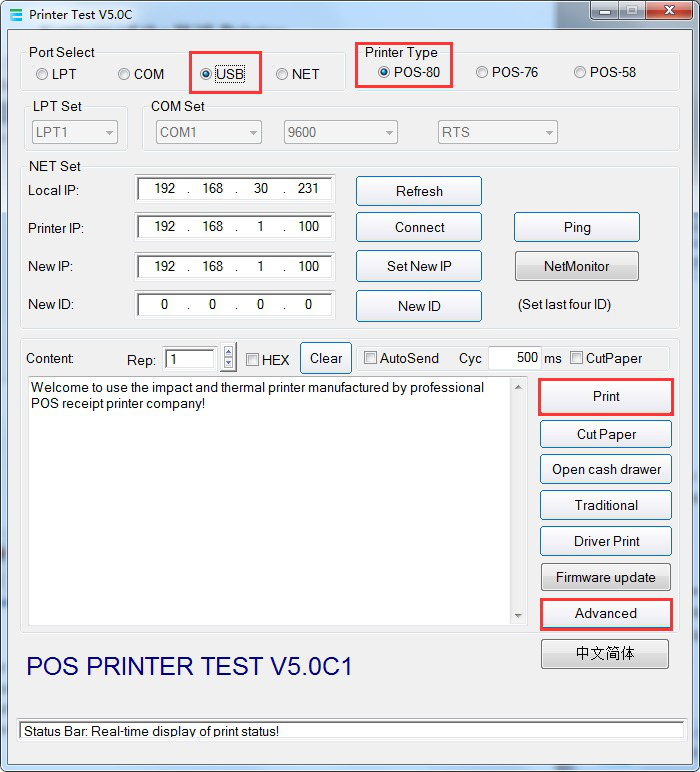
Figure 1 Open the Tool
Add a “LOGO” download and print test.
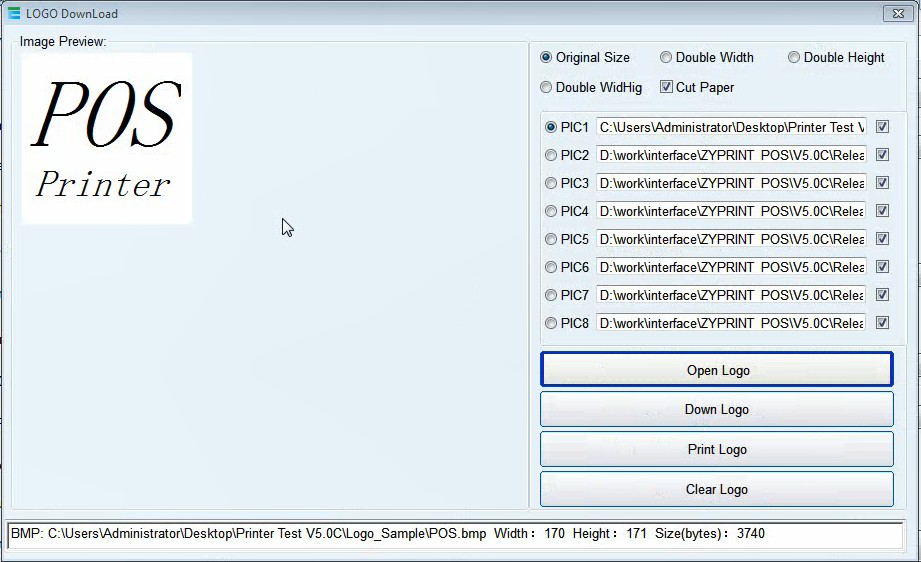
Figure 2 Add a Logo
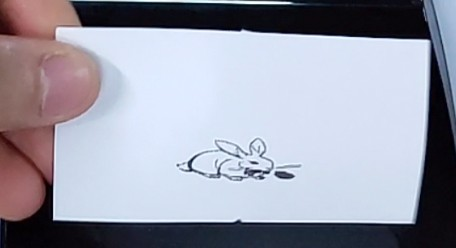
Figure 3 Printed Logo
2)Set queuing function
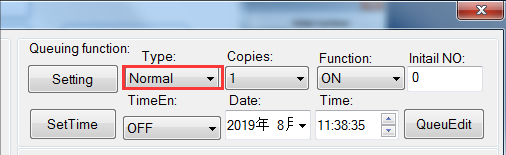
Figure 4 Set Queuing function
Copies: set the print copies
Function: ON
Initail NO: Set the initial value of the queuing number, and the printer will start printing from the next number.
TimeEn: set if print Date or Time(Default follow system time), after setting, click “SetTime”
QueuEdit: Edit queuing receipt content
3)Queueedit
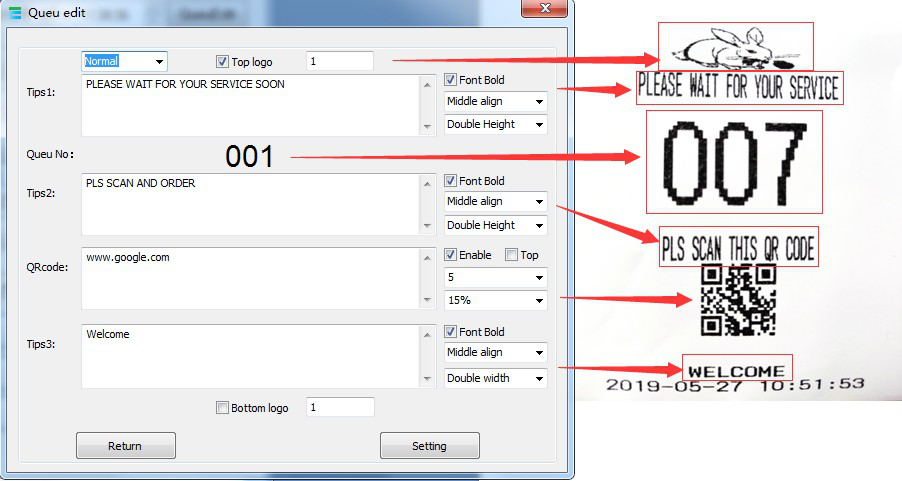
Figure 5 Queue Edit
Click “Setting” to save the settings.
4) Press the FEED button to see print the queuing receipt.
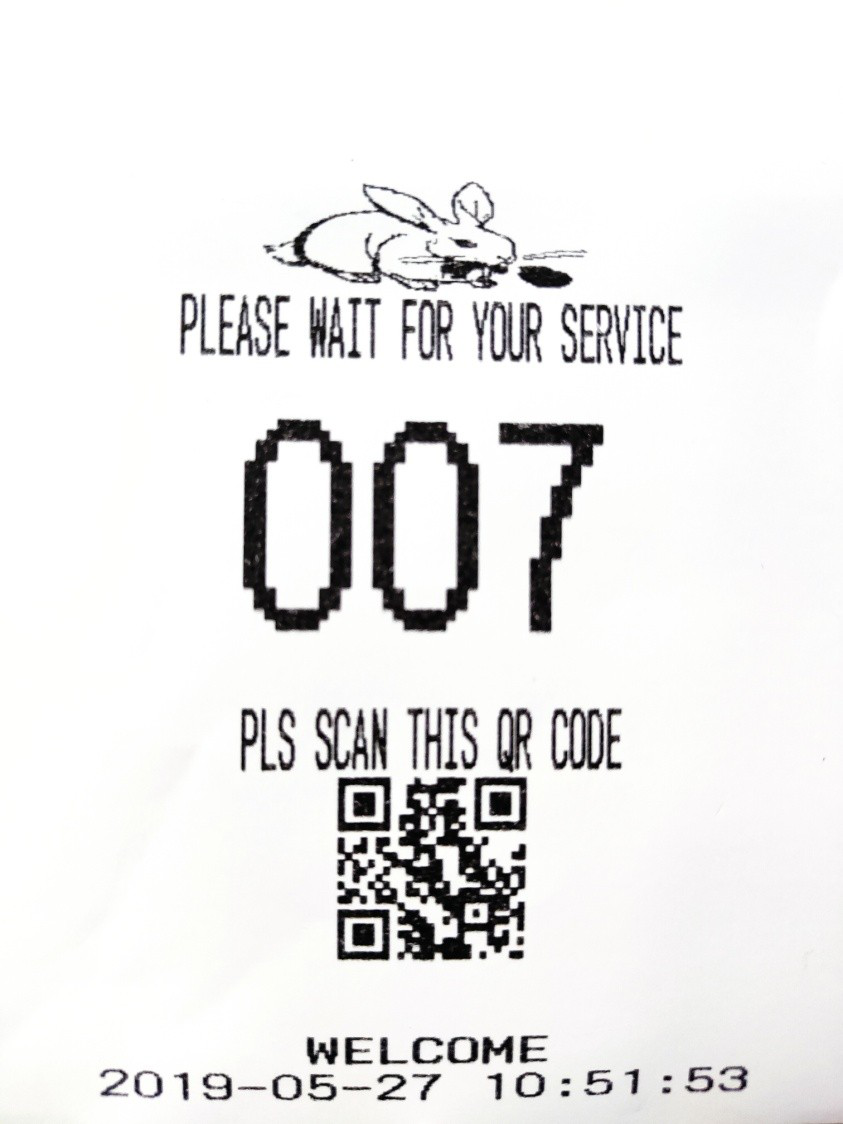
Figure 6 Template
If the printer connected by LAN/Ethernet/COM, you can use the QueuMonitor tool:http://u.pc.cd/PWtctalK
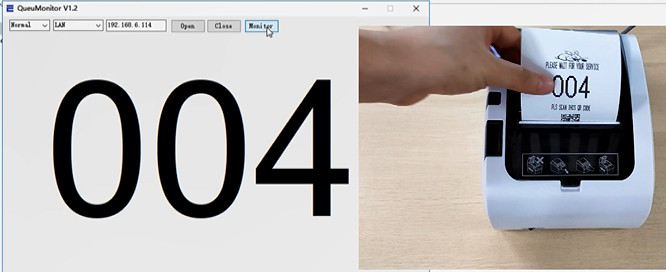
Figure 7 QueuMonitor
Notes:
If restart the printer, the Date and Time will be invalid.
It does not affect normal printing except by pressing the feed button.
Comments
0 comments
Please sign in to leave a comment.